How to Get Your Costco Pay Stub Through Employee Self-Service (ESS)
Marcus Vance / Payroll Operations Editor
Reviewed by: Reviewed by the Paystub Generator Editorial Team
Legal Reviewer
Last Updated: August 29, 2026
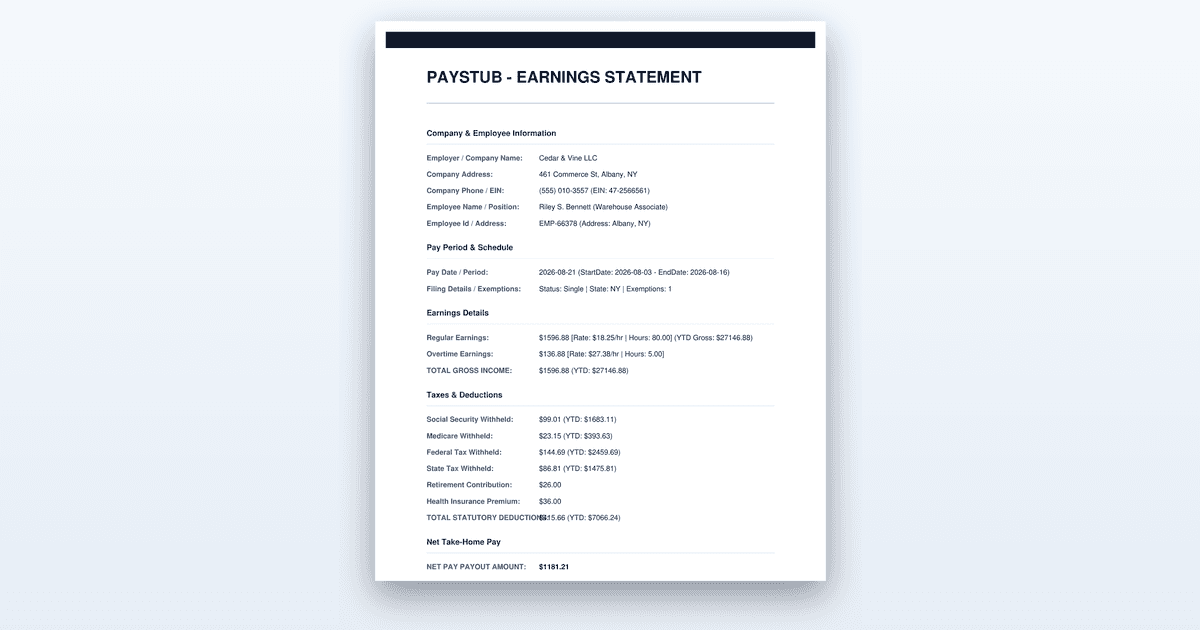
Step-by-step access to your Costco pay stub through Employee Self-Service: the official employee website, the Chrome requirement, and former employees.
Short on time? You can also create the document you need in just a couple of minutes.
Key Takeaways
- •Employee Self-Service, reached through a MyCostco Account, is Costco's system for employee information.
- •Costco's employee website states that Google Chrome is required to reach Employee Self-Service from outside the Costco network.
- •The official employee website also carries login assistance and guidance for former employees.
- •Never enter employee credentials on a third-party site that claims to offer pay stub access; start from costco.com.
How to Get Your Costco Pay Stub: 7 Steps Through the Employee Self-Service Portal
To get your Costco pay stub, sign in to the Employee Self-Service (ESS) portal through your MyCostco Account, starting from the official Costco employee website and using Google Chrome if you are off the network. The entire process takes about ten minutes, broken down into seven steps: accessing the official site, opening ESS in Chrome, signing in, selecting the pay period, downloading the PDF, and, if you have left the company, using the former-employee route. Once you know where to click, retrieving any pay stub from your history is straightforward.
Before You Start
Before you open a browser, gather the few things that make this process painless. You will need your MyCostco Account sign-in details, which is the username and password you set up when you were hired or when you first accessed employee resources. If you are at home or anywhere outside a Costco building, you also need the Google Chrome browser installed, because Costco's employee website explicitly states that Chrome is required to reach Employee Self-Service from outside the network. Finally, know which pay periods you actually need — a landlord or lender will usually specify exact dates, and having that in front of you prevents downloading the wrong stub and having to go back.
Starting without these in hand is not a disaster, but it will cost you time. If you do not know your MyCostco password, you will need to use the login assistance link on the official employee website, which can take a few minutes to process. If you try to guess your password repeatedly, you risk locking yourself out of the system entirely, which then requires a call to payroll or HR during business hours. If you are a former employee, understand that your access may be limited or already closed, so check the former-employee guidance on the employee website before assuming your old login still works.
Step-by-Step: Accessing Your Costco Pay Stub Through Employee Self-Service
Step 1: Start at Costco's Official Employee Website
Open your browser and type costco.com/employee-website.html directly into the address bar. Do not search for "Costco employee pay stub" and click the first result, because payroll portals attract look-alike sites that exist solely to harvest credentials. Starting from the official domain removes that risk entirely, and it is the only safe way to begin. The page you land on is the central hub for employee resources, including links to Employee Self-Service, login assistance, and guidance for former employees.
The judgment call here is about trust: never enter your employee credentials on a third-party site that claims to offer pay stub access. If a search result looks official but the URL is anything other than a Costco-owned domain, close it. The official page will not ask for your password immediately; it will route you to the proper sign-in portal. You will know this step worked when you see the Costco employee website load with clear links to Employee Self-Service and related resources. Bookmark this page so you never have to search for it again.
Step 2: Open Employee Self-Service in Google Chrome
If you are connecting from outside the Costco network, Google Chrome is required to reach Employee Self-Service, and this is not a suggestion buried in fine print. Costco's employee website states this requirement plainly, and it exists because the portal's security and compatibility settings are tuned for Chrome. If the page fails to load, renders as a blank screen, or behaves oddly in Safari, Firefox, or Edge, that is usually why. Switch to Chrome and try again before troubleshooting anything else.
The choice you face here is whether to attempt a workaround. Some employees try to force the portal to load in another browser by changing settings or using compatibility modes, but this rarely works and can waste twenty minutes. The straightforward move is to install Chrome if you do not already have it — it is free and takes under a minute. You will know this step worked when the Employee Self-Service login page loads cleanly without error messages or missing elements. If it still fails in Chrome, the issue is likely your connection or an outdated browser version, so update Chrome and retry.
Step 3: Sign In with Your MyCostco Account
Employee Self-Service is reached through your MyCostco Account, so the login screen you see is the same one you use for other employee resources. Enter your username and password carefully, watching for caps lock and stray spaces. If the sign-in fails, use the login assistance link on the employee website rather than trying repeatedly and locking yourself out. The system typically locks after a small number of failed attempts, and unlocking requires a call to payroll or HR, which is a delay you do not need.
The judgment call here is about persistence versus patience. A single failed attempt might be a typo, but two or three in a row means something else is wrong — a forgotten password, a deactivated account, or a username you misremember. Use the assistance tools first. You will know this step worked when you land on the Employee Self-Service dashboard, which shows your personal information and links to payroll, benefits, and other employee data. If you see a dashboard, you are in, and you can move to the next step.
Step 4: Open the Payroll Section and Choose the Pay Period
Inside Employee Self-Service, navigate to the payroll area, which is typically labeled with something like "Pay" or "Pay Statements." The system will display a list of your pay dates, usually in reverse chronological order. Select the pay date you need, then take a moment to confirm the pay period dates on screen match what you were asked for. A lender asking for "your last two pay stubs" means the two most recent pay dates, not the current partial period.
The choice you face here is about which stub to download when you are unsure. If you are gathering documents for a lease or loan, download the last two or three pay dates to be safe — it costs nothing and saves a second trip into the portal. If a specific date was requested, match it exactly. You will know this step worked when the selected pay stub displays on screen with your name, pay rate, hours, deductions, and net pay visible. If the stub looks wrong or the dates do not align, go back and select a different pay period before downloading.
Step 5: Download the PDF and Save It Somewhere Permanent
Once the correct stub is on screen, download the PDF using the button or link provided. Save the file rather than leaving it in your downloads folder, and name it with the pay date so you can find it later — something like "Costco_PayStub_2025-06-15.pdf." Portal access is not permanent, and a saved copy costs nothing today. Create a folder on your computer or cloud drive labeled "Pay Stubs" and drop every download there, because you will thank yourself the first time a lender asks for three months of history.
The judgment call here is about organization. You might be tempted to just let the file sit in Downloads, but that folder gets cleared, overwritten, or lost in a device upgrade. Take the thirty seconds to file it properly. You will know this step worked when the PDF opens cleanly and the file is visible in your chosen folder with the name you gave it. If you need multiple stubs, repeat this step for each pay period before moving on, because you are already in the portal and the work is done.
Step 6: If You Have Left Costco, Use the Former-Employee Route
If you are a former employee, your situation is different, and Costco's employee website carries specific guidance for former employees on accessing Employee Self-Service. Follow that guidance rather than assuming your old login still works, because access windows after separation are limited. Some former employees retain access for a short period, while others find their accounts deactivated immediately. The employee website will tell you which category you fall into and what steps to take if your access is closed.
The choice you face here is between following the official route and improvising. Do not call the general customer service line or try to log in repeatedly — the former-employee page is the authoritative source. If you need stubs from before your separation and your access is closed, the guidance will direct you to the right payroll contact. You will know this step worked when you either successfully access your historical stubs or you have clear instructions on who to contact and what to request. If the guidance is unclear, move to the next step.
Step 7: Contact Your Location's Payroll or HR If Access Fails
If login assistance does not resolve the issue, your warehouse or department payroll contact can take a written request. This is the human fallback that exists for exactly this situation. Name the specific pay periods you need and how you want them delivered — typically a PDF emailed to you or a printed copy made available for pickup. Be specific about the dates, because a vague request like "my pay stubs" will get a follow-up question and a delay.
The judgment call here is about what to say. Include your employee number if you have it, because that speeds up the search. If you are a former employee, mention your separation date and your last warehouse. You will know this step worked when you receive confirmation that your request is being processed and a timeline for delivery. If the payroll contact is unresponsive, escalate to the location's HR manager, but give the first contact a couple of business days before you do.
Worked Example
Let me walk you through a realistic scenario so you can see exactly how this plays out. This is an example, not your actual figures. Meet Dana, a current Costco employee at a warehouse in Oregon. Dana is applying for an apartment lease, and the landlord asks for the last three pay stubs. Today is June 20, 2025, and Dana's most recent pay date was June 15.
Dana opens Chrome at home and types costco.com/employee-website.html into the address bar. The employee website loads, and Dana clicks the Employee Self-Service link. The sign-in screen appears, and Dana enters the MyCostco username and password — the same ones used for the employee discount portal. The dashboard loads, and Dana clicks the payroll section. The list shows pay dates: June 15, June 1, May 15, and so on. Dana selects June 15 first, confirms the pay period on screen shows May 26 through June 8, and downloads the PDF. The file is named "Costco_PayStub_2025-06-15.pdf" and saved to a folder called "Pay Stubs" on the desktop. Dana repeats this for June 1 and May 15, confirming each pay period matches before downloading. All three stubs are now in the folder, and Dana emails them to the landlord within fifteen minutes of starting.
Now imagine Dana had left Costco in April 2025 instead. The landlord wants the last three stubs, but Dana's last pay date was April 15. Dana goes to the employee website, finds the former-employee guidance, and discovers that ESS access closed thirty days after separation. The guidance directs Dana to contact the former warehouse's payroll office. Dana sends a written request naming the three pay periods — March 15, March 31, and April 15 — and asks for PDFs emailed to a personal address. Payroll responds within two business days with the files attached. Either way, Dana gets the stubs, but the path is completely different depending on employment status.
Where People Get This Wrong
The most common failure is searching for the portal instead of typing the URL directly. Employees Google "Costco pay stub," click a sponsored result or a look-alike domain, and enter their MyCostco credentials on a site that has nothing to do with Costco. The consequence is a compromised account, and the fix is to always start from costco.com/employee-website.html and never enter credentials anywhere else.
The second mistake is trying to use a non-Chrome browser off the network. Employees open the portal in Safari or Edge, hit a blank screen, and assume the system is down. They waste time refreshing, restarting, and calling IT before trying Chrome, which works immediately. The fix is to read the requirement on the employee website and use Chrome from the start.
The third failure is waiting until after separation to download stubs. Former employees assume their portal access lasts indefinitely, then find it deactivated when a lender asks for documentation. The consequence is a delayed application and a frustrating call to payroll. The fix is to download and save every stub while you still have access, because portal access after leaving a job is time limited.
The fourth mistake is requesting stubs from payroll without specifics. A former employee emails "I need my pay stubs" and gets a reply asking which dates, adding days to the process. The fix is to name the exact pay periods and the delivery method in the first message, along with your employee number if you have it.
When to Get Professional Help
If you are in a dispute over wages, missing pay, or incorrect deductions, a pay stub download will not resolve it — contact your state labor department or a wage-and-hour attorney, because that is a legal matter, not a portal issue. Similarly, if you need pay stubs for a court case, divorce proceeding, or tax audit, a lawyer or accountant should guide the request, because the documentation requirements are specific and the stakes are higher than a lease application. For routine access problems, payroll or HR is the right call, but for anything involving legal or tax consequences, get professional advice rather than improvising. This article is general information, not legal or tax advice.
The Bottom Line
Getting your Costco pay stub is a ten-minute task when you start from the official employee website, use Google Chrome, and sign in with your MyCostco Account. Download and save every stub while you have access, because that access does not last forever. If you are a former employee, check the guidance on the employee website first, and contact payroll with specific dates if your access is closed.
Need a Pay Stub Right Now?
Generate a clean, professional pay stub in minutes with our calculator.
Create a Pay StubFrequently Asked Questions
Which browser do I need for Costco Employee Self-Service?
Costco's employee website states that employees accessing Employee Self-Service from outside the Costco network must use Google Chrome.
Can former Costco employees still get their pay stubs?
Costco's employee website includes guidance for former employees on Employee Self-Service access. Access after separation is generally time limited, so retrieve what you need as early as you can.
What should I do if I cannot log in?
Use the login assistance on Costco's official employee website first. If that does not resolve it, contact your location's payroll or HR contact with a written request naming the pay periods you need.
Authoritative References
The rules described here come from the agencies that set them. Check the current text before you rely on a deadline or a figure:
Related Guides
- Amazon Pay Stub Portal: Step-by-Step Access Guide (2026)
- How to Get a Pay Stub from DoorDash (Proof of Income Guide)
- H-E-B Pay Stub Portal Guide: PartnerNet Access (2026)
- How to Calculate Overtime Pay: A Step-by-Step Guide for 2026
- How to Get Pay Stubs From a Previous Employer
Sources: Costco official employee website (costco.com/employee-website.html). This guide is informational and not legal or tax advice.
This guide is part of our Payroll & Tax service — pay stubs, W-2s and payroll compliance tools.
Explore Payroll & TaxPayroll Knowledge Hub
Explore related essential payroll terminology, tax definitions, and documentation guides.
Part of our interconnected SEO topic cluster network.
Citations & Legal Sources
- Costco official employee website (costco.com/employee-website.html)